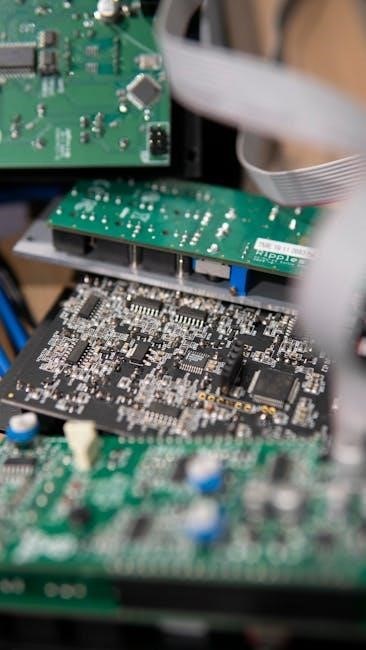
Modern digital electronic computers process data via software, evolving from arithmetic machines. The motherboard, a crucial component, connects all parts, enabling system functionality.
What is a Motherboard?
The motherboard, also known as the mainboard or system board, is the central printed circuit board (PCB) in a computer. It’s the foundation upon which all other components connect, facilitating communication between them. Essentially, it’s the backbone of the entire system, housing the CPU, RAM, storage devices, and expansion cards.
Historically, computers evolved from simple calculating devices to complex programmable machines. The motherboard’s role has grown alongside this evolution. It’s not merely a connector; it distributes power and provides the necessary interfaces for all components to operate harmoniously. Understanding its function is key to comprehending how a computer works.
The Motherboard’s Role in System Functionality
The motherboard orchestrates the flow of data between all computer components. It enables the CPU to communicate with memory, storage, and peripherals, ensuring seamless operation. This central role is achieved through the chipset, which manages data pathways and controls component interaction.
Without a functioning motherboard, a computer cannot process information or execute instructions. It’s the platform that allows software programs to utilize hardware resources. Modern computers, built on programmable devices, rely heavily on the motherboard’s efficiency. From basic arithmetic operations to complex tasks, the motherboard is integral to every function.
Key Components of a Motherboard
Essential components include the CPU socket, chipset, RAM slots, and expansion slots (PCIe, PCI). These elements facilitate data transfer and system functionality.
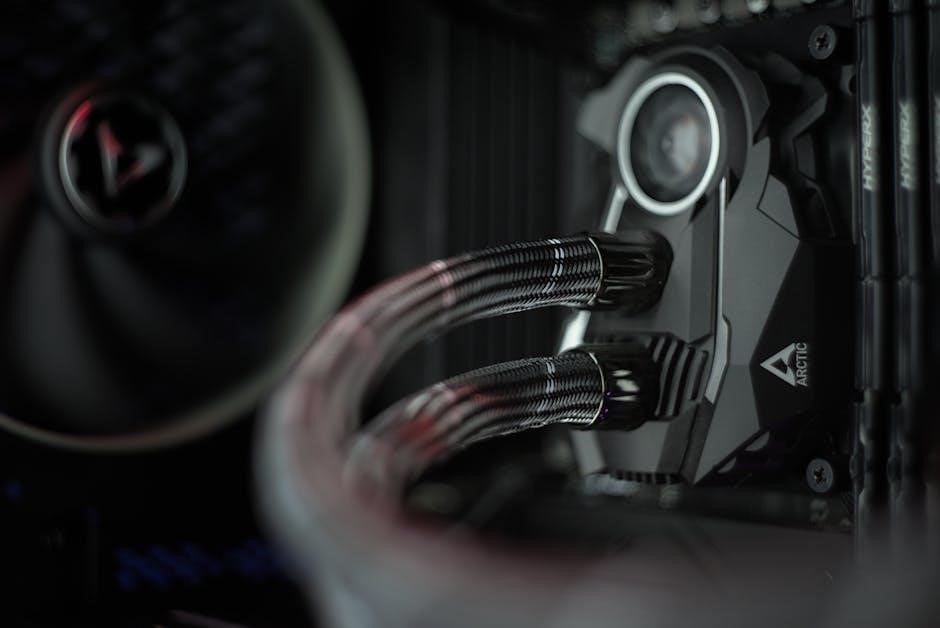
CPU Socket
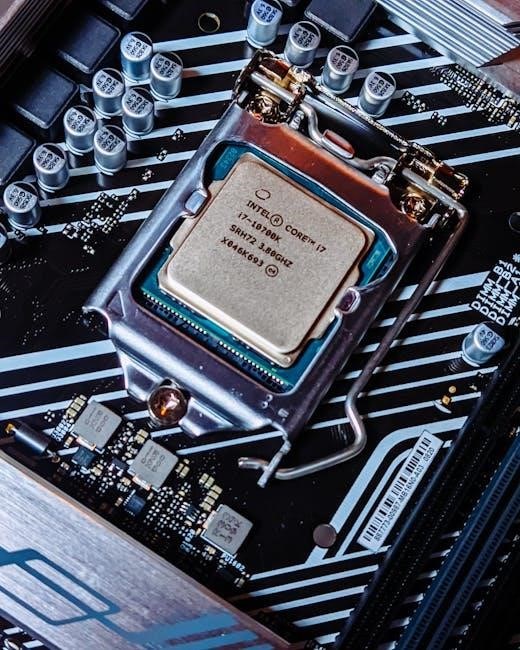
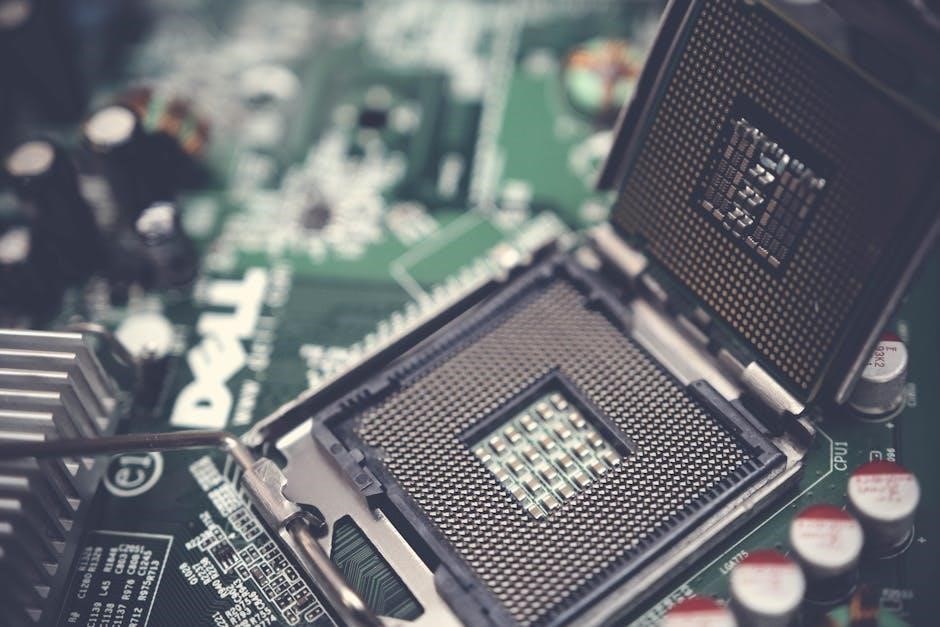
The CPU socket is a critical component, physically connecting the central processing unit (CPU) to the motherboard. It provides the mechanical support and electrical connections necessary for the CPU to function. Different CPU generations require specific socket types – compatibility is paramount.
Sockets vary in pin count and design (e.g., LGA, PGA). LGA (Land Grid Array) sockets have pads, while PGA (Pin Grid Array) sockets feature pins on the CPU itself. Proper alignment and secure installation are vital to prevent damage. The socket delivers power and enables communication between the CPU and other motherboard components, directly impacting system performance and stability. Selecting a motherboard with the correct socket for your chosen CPU is the first step in building a computer.
Chipset (Northbridge & Southbridge)
The chipset acts as the motherboard’s traffic controller, managing data flow between the CPU, RAM, and peripherals. Historically, it comprised two main components: the Northbridge and the Southbridge. The Northbridge handled high-speed communications with the CPU, RAM, and graphics card, while the Southbridge managed slower peripherals like USB, SATA, and audio.
Modern chipsets often integrate Northbridge functions directly into the CPU, simplifying the architecture. The remaining chipset (essentially the evolved Southbridge) continues to manage I/O functions. Chipset features significantly impact supported RAM speeds, the number of PCIe lanes, and available storage options. Choosing a chipset aligned with your needs is crucial for optimal system performance and future upgrades.
RAM Slots
RAM slots are dedicated connectors on the motherboard designed to house Random Access Memory (RAM) modules. These slots dictate the type, speed, and maximum capacity of RAM your system can support. Motherboards typically feature two or four RAM slots, allowing for memory expansion and dual- or quad-channel configurations for increased bandwidth.
The chipset determines the supported RAM type (e.g., DDR4, DDR5). Proper RAM installation is vital for system stability; modules must be compatible and correctly seated. Insufficient or incompatible RAM can lead to boot failures or performance bottlenecks. Understanding RAM slot specifications is crucial when upgrading or building a computer.
Expansion Slots (PCIe, PCI)
Expansion slots, like PCIe (Peripheral Component Interconnect Express) and the older PCI (Peripheral Component Interconnect), allow users to add functionality to their computers. These slots accommodate expansion cards such as graphics cards, sound cards, network cards, and storage controllers. PCIe is the dominant standard today, offering significantly faster data transfer rates than PCI.
PCIe slots come in various sizes (x1, x4, x8, x16), indicating the number of data lanes and bandwidth available. The motherboard’s chipset determines the number and type of expansion slots. Utilizing these slots enables customization and upgrades, extending the computer’s capabilities beyond its base configuration.
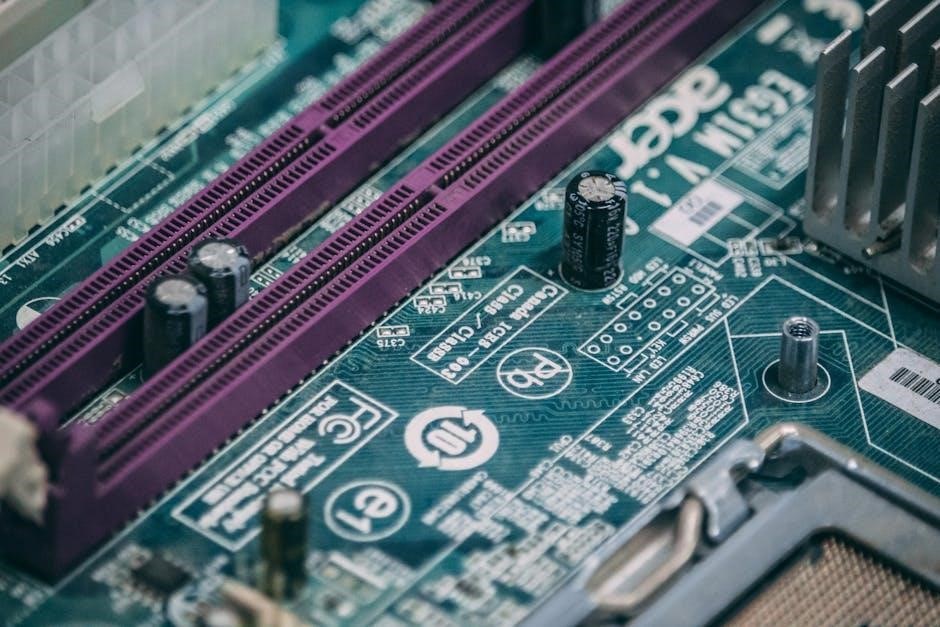
Power Delivery System
The power delivery system, including the ATX connector and VRMs, efficiently distributes stable power to all motherboard components, ensuring reliable operation.
ATX Power Connector
The ATX power connector is the primary interface supplying power from the power supply unit (PSU) to the motherboard. It’s a standardized 20 or 24-pin connector, providing various voltage rails – +12V, +5V, and +3.3V – essential for powering the CPU, chipset, RAM, and other components.
Modern PSUs often feature modular designs, allowing users to connect only the necessary cables, reducing clutter. The ATX connector’s secure latching mechanism prevents accidental disconnection. Proper wattage and quality of the PSU are critical; insufficient power can lead to system instability or failure. Selecting a PSU certified for efficiency (80+ Bronze, Silver, Gold, etc.) ensures optimal power delivery and reduced energy waste.
Voltage Regulator Modules (VRMs)
Voltage Regulator Modules (VRMs) are integral to a motherboard’s power delivery system. They convert the PSU’s 12V power into the lower voltages (e.g., 1.2V, 1.8V) required by the CPU, RAM, and other sensitive components. VRMs consist of MOSFETs, chokes, and capacitors, working together to provide stable and clean power.
Higher-quality VRMs, featuring more phases and robust components, are crucial for overclocking and handling high-power CPUs. Insufficient or poorly designed VRMs can lead to voltage fluctuations, system instability, and even component damage. Effective VRM cooling, often achieved with heatsinks, is vital for maintaining performance and longevity, especially under heavy loads.
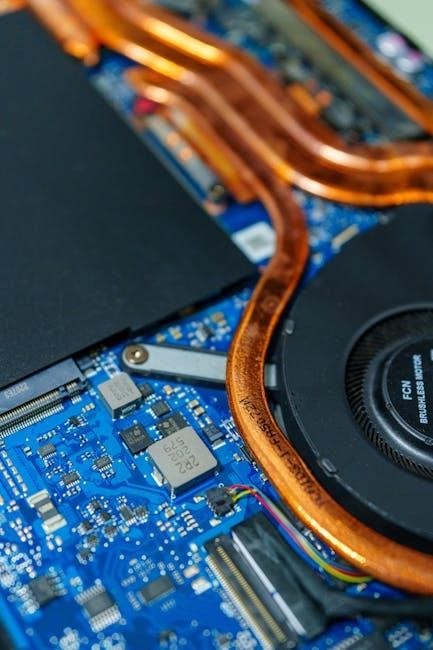
Storage Interfaces
Motherboards facilitate data storage via SATA ports and faster M.2 slots. These interfaces connect hard drives, SSDs, and NVMe drives for data processing.
SATA Ports
SATA (Serial Advanced Technology Attachment) ports are a standard interface for connecting storage devices like hard disk drives (HDDs) and solid-state drives (SSDs) to the motherboard. They transmit data faster and more reliably than older interfaces like PATA (Parallel ATA).
Typically, motherboards feature multiple SATA ports, allowing for the connection of several storage devices. These ports support data transfer rates, evolving through different SATA revisions (SATA I, SATA II, SATA III), with SATA III being the most common today, offering speeds up to 6 Gbps.
SATA ports utilize a small, rectangular connector and a data cable to establish a connection. They also provide power to the connected storage devices, simplifying installation and ensuring efficient operation within the computer system.
M.2 Slots
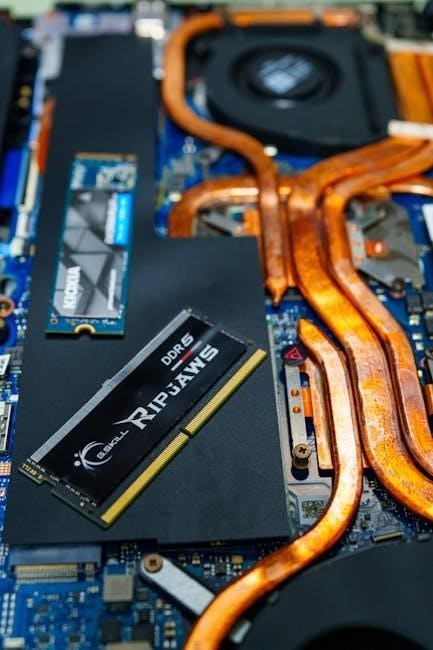
M.2 slots represent a modern interface for connecting high-speed storage devices, primarily NVMe SSDs (Non-Volatile Memory Express). These slots offer significantly faster data transfer rates compared to traditional SATA interfaces, leveraging the PCIe (Peripheral Component Interconnect Express) bus.
M.2 slots come in various lengths (e.g., 2280, 2260, 2242), indicating the physical dimensions of the supported SSDs. Motherboards typically include one or more M.2 slots, often supporting both SATA-based and NVMe-based SSDs, though compatibility should be verified.
Utilizing M.2 slots allows for compact storage solutions and dramatically improved system responsiveness, making them ideal for operating systems and frequently accessed applications. They are a key component in building high-performance computing systems.
Onboard Features
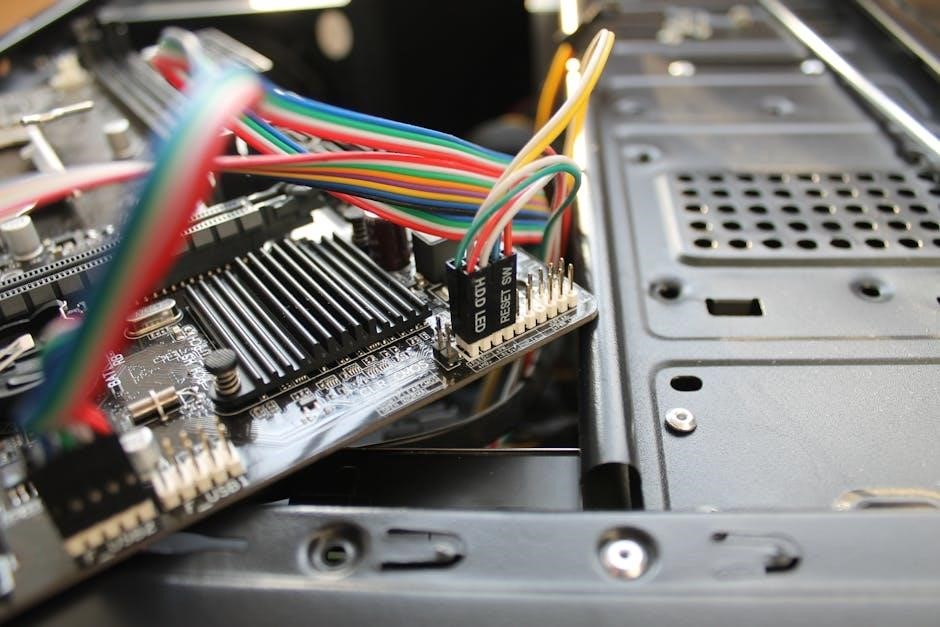
Motherboards integrate features like USB ports, audio connectors, and LAN ports (Ethernet) directly onto the board, enhancing functionality and convenience for users.
USB Ports (Types & Functions)
USB ports are ubiquitous on modern motherboards, facilitating connections for a vast array of peripherals. Initially, USB 2.0 provided standard data transfer speeds. Later, USB 3.0 (now USB 3.1 Gen 1) significantly increased bandwidth. USB 3.1 Gen 2 offered even faster speeds, and now USB 3.2 and USB4 are prevalent, utilizing the USB-C connector for increased versatility and power delivery.
These ports support data transfer, power charging, and even display output with DisplayPort Alternate Mode over USB-C. Different USB port colors often indicate their capabilities – black for USB 2.0, blue for USB 3.0, and red for faster charging or specialized functions. The number and types of USB ports vary depending on the motherboard’s features and price point.
Audio Connectors
Audio connectors on the motherboard enable connection to speakers, microphones, and other audio devices. Typically, these are color-coded 3.5mm jacks. Green usually signifies the line-out for speakers or headphones, while pink is for the microphone input. Blue often represents the line-in, used for external audio sources. Some motherboards include additional jacks for center/subwoofer output and rear/side speaker connections for surround sound systems.
Modern motherboards often feature high-definition audio codecs, delivering improved sound quality. Optical S/PDIF outputs are also common, providing a digital audio connection; The quality of the audio circuitry and components significantly impacts the overall audio experience, with higher-end motherboards offering superior sound fidelity.
LAN Port (Ethernet)
The LAN port, commonly known as the Ethernet port, facilitates a wired network connection to a router or network switch. It uses an RJ45 connector and supports various Ethernet standards, including Gigabit Ethernet (10/100/1000 Mbps) and, increasingly, faster speeds like 2.5GbE or even 10GbE on high-end motherboards. This provides a stable and reliable internet connection, often preferred for gaming and other bandwidth-intensive applications.
The motherboard’s network controller manages the Ethernet connection. Many modern motherboards include features like Wake-on-LAN (WoL), allowing the computer to be remotely powered on over the network. LED indicators near the port typically show link activity and connection speed.
Back Panel Connectors
Back panel connectors provide external device interfaces, including PS/2 ports, display outputs (HDMI, DisplayPort, VGA), and USB ports, for peripheral connections.
PS/2 Ports
PS/2 ports, once standard, are now less common on modern motherboards, representing a legacy interface for connecting keyboards and mice. These ports utilize a six-pin mini-DIN connector, distinguished by color-coding – typically purple for keyboards and green for mice. While offering a direct connection, PS/2 ports lack the plug-and-play convenience of USB.
They operate using interrupts, potentially causing conflicts in older systems. Despite their decline, some users still prefer PS/2 for perceived advantages in latency and security, particularly in gaming or specialized applications. However, newer systems predominantly favor USB for its versatility and broader compatibility.
Display Outputs (HDMI, DisplayPort, VGA)
Display outputs on the motherboard facilitate connection to monitors, enabling visual representation of processed data. HDMI (High-Definition Multimedia Interface) and DisplayPort are digital interfaces, supporting high resolutions and refresh rates, alongside audio transmission. VGA (Video Graphics Array), an older analog standard, is becoming increasingly rare but may still be present for compatibility with legacy displays.
DisplayPort generally offers superior performance and features, like adaptive sync technologies. HDMI is widely supported across various devices. The availability and version of these ports depend on the motherboard’s chipset and intended use, impacting the maximum supported resolution and display capabilities.
Motherboard Form Factors
Motherboard form factors – ATX, Micro-ATX, and Mini-ITX – dictate dimensions and component density, influencing case compatibility and expansion possibilities within a computer.
ATX Form Factor
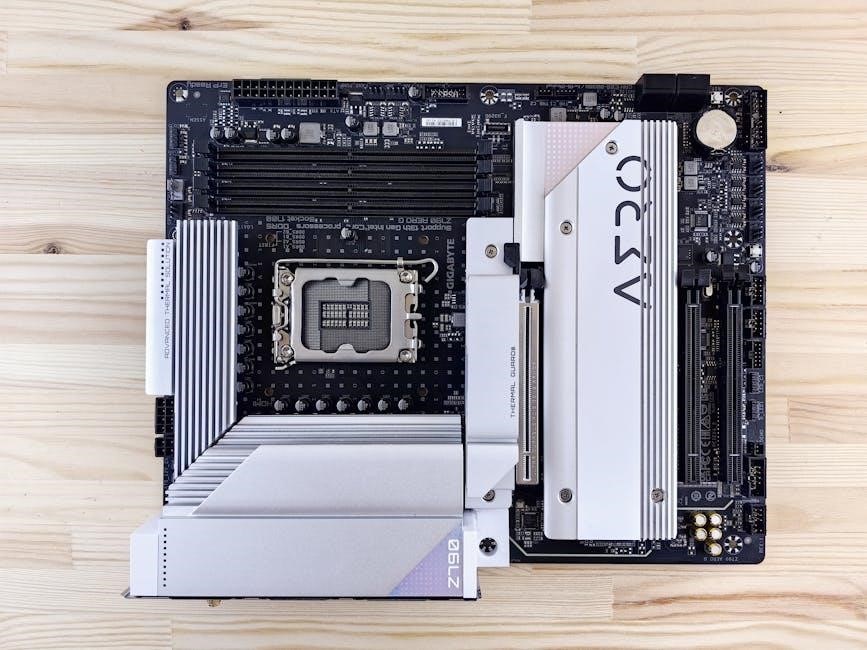
ATX (Advanced Technology Extended) is the most common motherboard form factor, measuring 12 x 9.6 inches. Its popularity stems from offering a balance between expandability and affordability. ATX boards typically feature seven expansion slots, allowing for multiple graphics cards, sound cards, and other peripherals.
This form factor provides ample space for components, facilitating better cooling and easier installation. The standardized layout simplifies component compatibility. ATX power connectors are also widely available. Due to its size, an ATX motherboard requires a correspondingly larger computer case. It remains the preferred choice for high-performance desktop builds and systems requiring significant expansion capabilities.
Micro-ATX Form Factor
Micro-ATX motherboards represent a compromise between the full-sized ATX and the smaller Mini-ITX. Typically measuring 9.6 x 9.6 inches, they offer a reduced footprint while still providing a reasonable level of expandability. Generally, Micro-ATX boards feature four expansion slots, sufficient for a dedicated graphics card and other essential components.
This form factor is ideal for building compact, yet capable, systems. They are often found in pre-built computers and offer a good balance of cost and performance. While offering fewer expansion options than ATX, Micro-ATX boards still support standard ATX power supplies and cooling solutions, making them a versatile choice for many users.
Mini-ITX Form Factor
Mini-ITX motherboards are the smallest commonly available form factor, measuring just 6.7 x 6.7 inches. Designed for compact builds, they typically accommodate a single expansion slot, usually for a graphics card. Despite their small size, Mini-ITX boards offer full desktop functionality, supporting standard CPUs, RAM, and storage devices.
These boards are popular for home theater PCs (HTPCs) and small form factor gaming rigs. They often require specialized cooling solutions due to limited space. While expandability is limited, Mini-ITX provides a cost-effective and efficient solution for users prioritizing a minimal footprint and lower power consumption. They utilize standard ATX power supplies.
Understanding Motherboard Specifications
Motherboard specifications detail socket type compatibility and chipset features, dictating CPU support and overall system capabilities. Careful review ensures component harmony.
Socket Type Compatibility
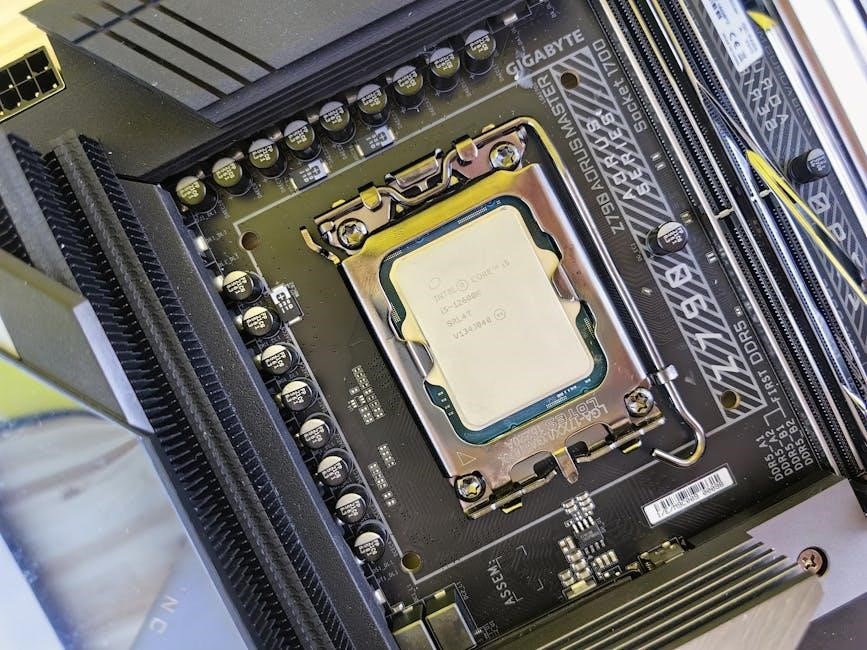
CPU socket type is paramount when selecting a motherboard, dictating which processors are compatible. Different generations and manufacturers – Intel and AMD – utilize distinct sockets. For instance, an LGA 1700 socket supports 12th/13th gen Intel CPUs, while AM5 accommodates Ryzen 7000 series.
Incorrect socket selection renders the CPU unusable with the motherboard. Beyond the physical fit, chipset compatibility also plays a role; a compatible chipset must support the chosen processor’s features and instruction sets. Carefully verifying socket and chipset compatibility before purchase prevents costly errors and ensures optimal system performance. Resources detailing socket types and CPU support are readily available online.
Chipset Features and Support
The chipset, often divided into Northbridge and Southbridge (though increasingly integrated), governs communication between the CPU and other components. It dictates supported features like USB versions, SATA port count, PCIe lane allocation, and RAM speeds. High-end chipsets offer more features – increased PCIe lanes for multiple GPUs, more USB ports, and enhanced overclocking capabilities.
Chipset selection impacts future upgrade potential. A robust chipset provides flexibility for adding components. Understanding chipset specifications is crucial; it determines the motherboard’s overall capabilities and compatibility with peripherals. Manufacturers’ websites detail chipset features and supported devices, aiding informed decision-making during system builds.
Troubleshooting Motherboard Issues
Common failure symptoms include boot failures, random crashes, or a lack of POST. Careful diagnosis, checking connections, and component testing are vital for resolution.
Common Motherboard Failure Symptoms
Identifying motherboard issues requires recognizing specific symptoms. A failure to boot, where the computer doesn’t start, is a primary indicator. Random crashes, often accompanied by blue screens of death (BSODs), suggest instability. A lack of POST (Power-On Self-Test) – indicated by no display or beeps – points to a critical problem.
Overheating can cause intermittent failures. Physical damage, like bulging capacitors or burnt components, is visually apparent. Peripheral malfunctions, such as non-functional USB ports or audio, can also stem from motherboard defects. Inconsistent performance, with slowdowns or freezes, may also signal underlying issues. Thorough testing and observation are crucial for accurate diagnosis.